How to Connect Your Lightspeed Retail Account for Prepaid Bookings
Written By Courserev Help
Last updated About 2 months ago
If your course uses Lightspeed as its Point of Sale (POS) system and accepts prepaid online payments, you must link your Lightspeed Retail account to CourseRev. Connecting this account ensures online transactions, deposits, and prepayments are seamlessly processed and recorded in your Lightspeed software.
Step-by-Step: Managing Setup on the Payment Confirmation Screen
Both your payment setup configuration and the integration connection button are located on the exact same page.
Navigate to Settings > Payment Confirmation.
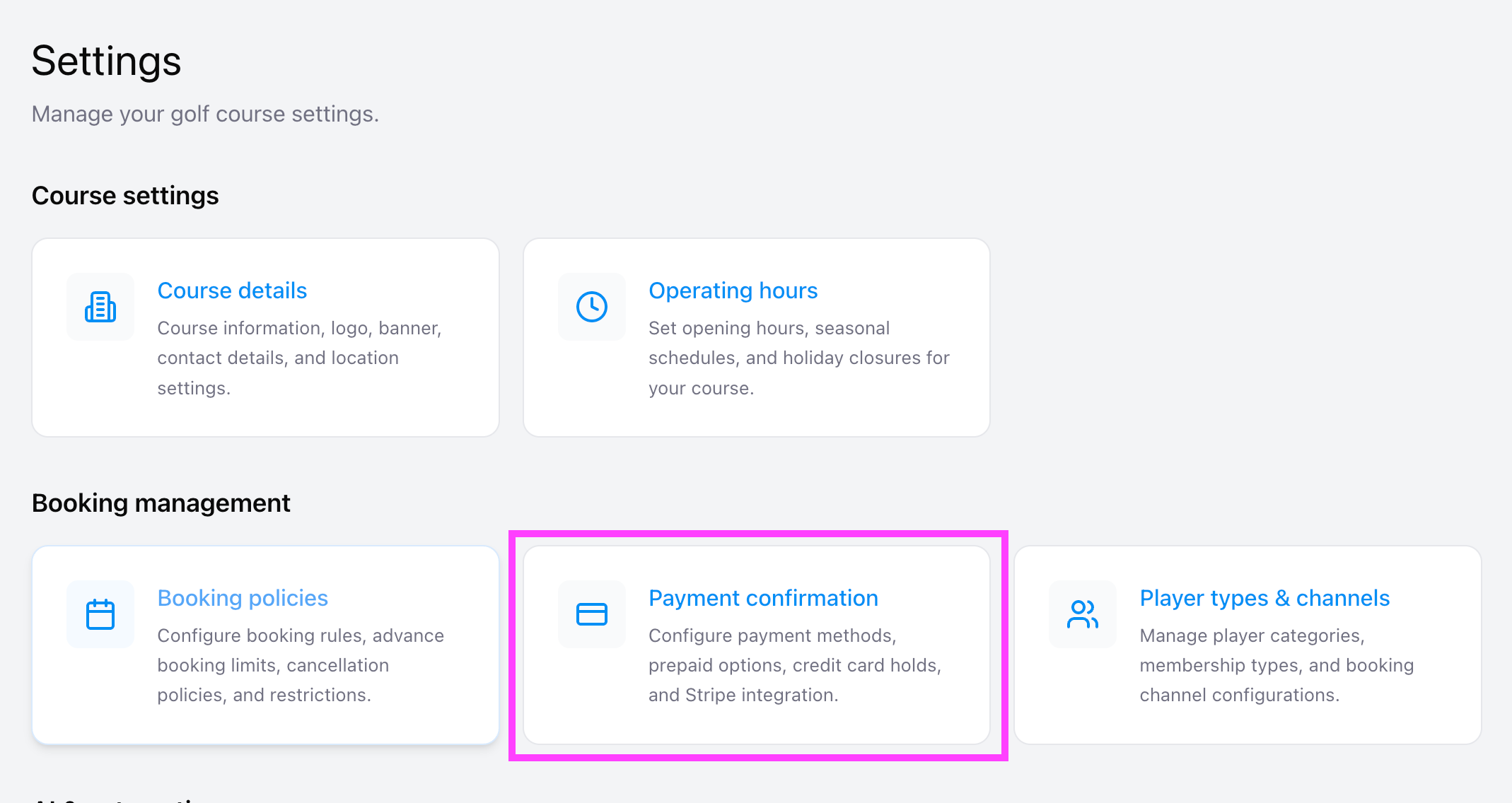
Review the active payment methods displayed at the top of the screen:
Pay at Counter (PAC)
Mandatory Prepaid
Optional Prepaid
Credit Card Hold
Booking Fees Prepaid
If your course setup requires a connected retail account (e.g., for prepaid bookings), you will see the Setup Requirements section directly below your payment methods on this same screen.
Connecting Your Account
Locate the Connection Section: Scroll down on the Payment Confirmation page to find the Setup Requirements area.
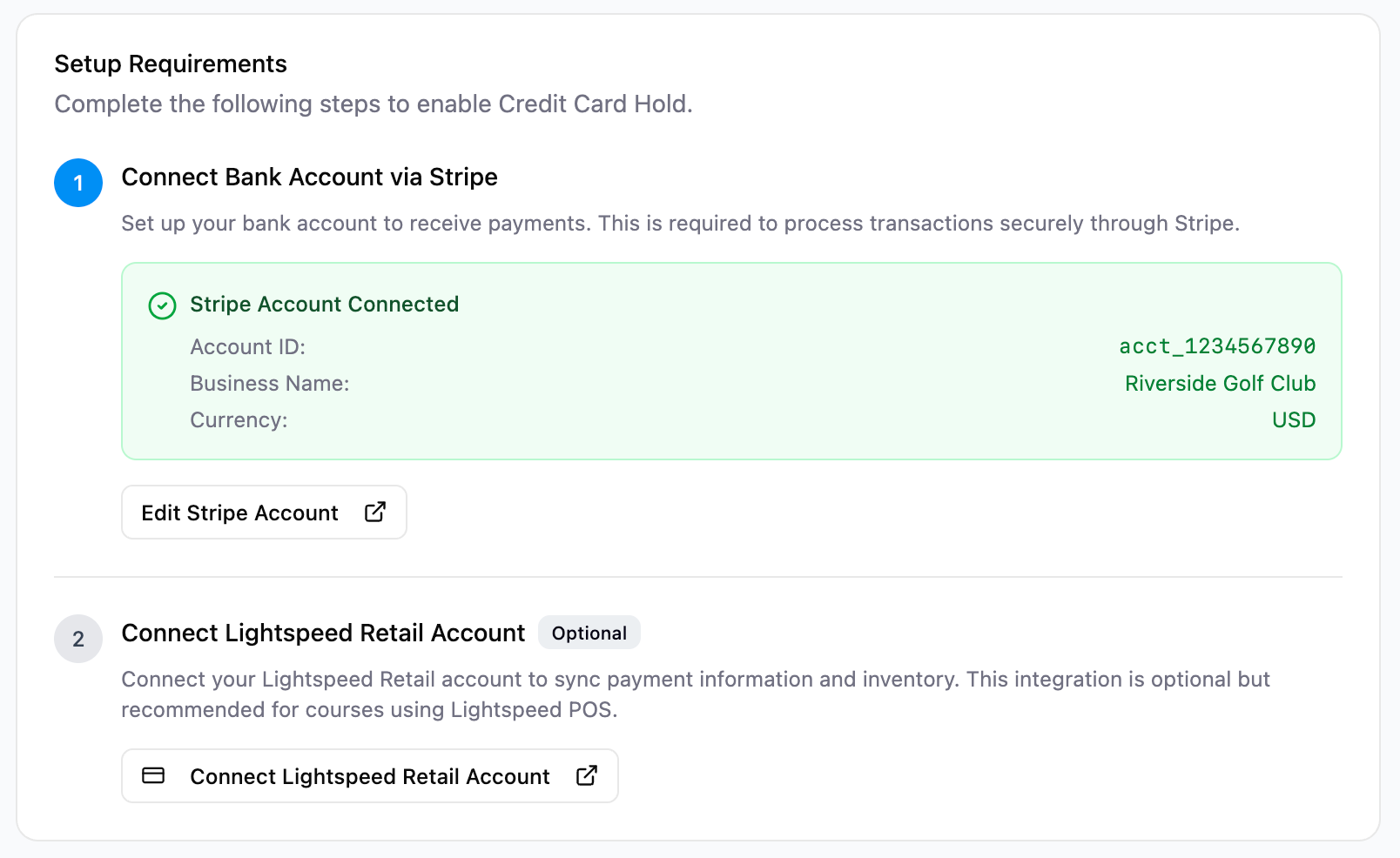
Click the Connect Lightspeed Retail Account button. A secure Lightspeed login window will automatically pop up.
Log in using your standard Lightspeed Retail username/email and password to authorize the link.
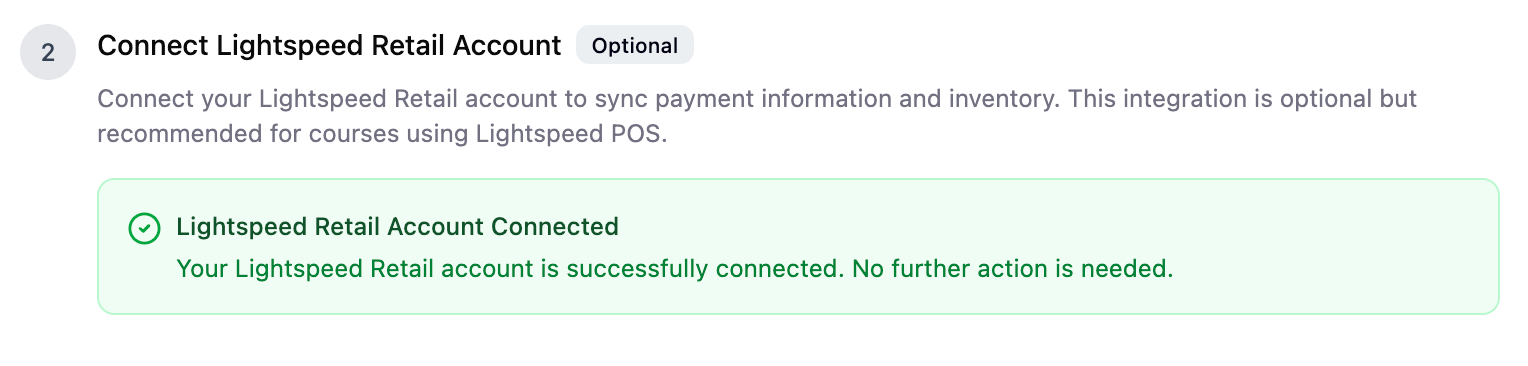
After logging in, you’ll return you to the same Payment Confirmation screen, where the status will update to show that your Lightspeed Retail account is successfully connected.
Was this helpful?
Still need help? Share an idea