Noticeboard
Written By Courserev Help
Last updated 5 months ago
The Noticeboard is an essential tool for proactive communication. It allows managers to post vital messages—such as maintenance alerts or tournament updates—that are automatically shared with golfers across all CourseRev channels: Voice Concierge, Chat Bot, and the Web Portal.
Why use the Noticeboard?
Integrated Communication: When a golfer calls, the Voice Concierge will verbally relay active notices. Similarly, the Chat Bot and Web Portal will display these as prominent alerts during the booking process.
Smart Confirmation Emails: Any active notice is automatically included in the booking confirmation email if the tee time falls within the notice’s date range.
Manage Expectations: By informing golfers of conditions (like aerated greens or cart path only) before they book, you ensure a better customer experience and fewer complaints at the pro shop.
How the Noticeboard is Organized
The page is divided into three functional areas:
Top area: Contains the Add Notice button and a Search Bar to quickly find specific past or future announcements.

Daily & Upcoming View (Center): Features a calendar view showing notices active for the current day, alongside a list of Upcoming Notices so you can see what is scheduled next.
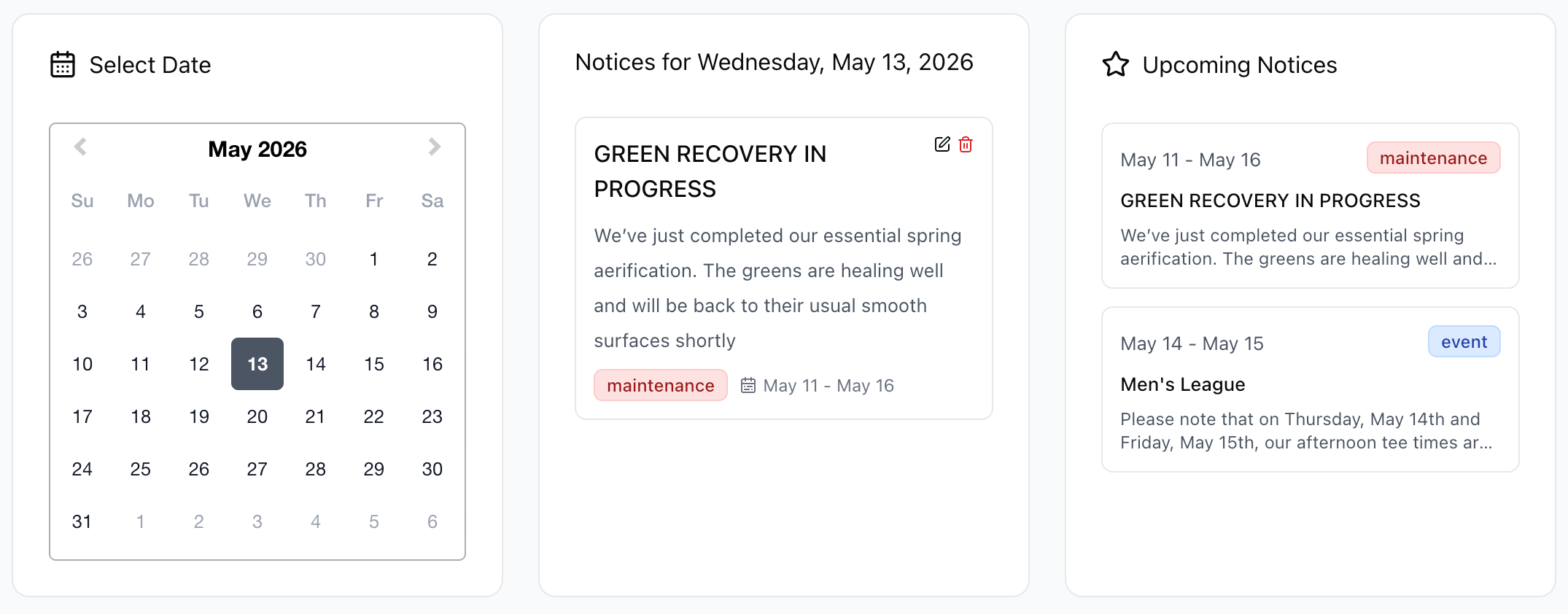
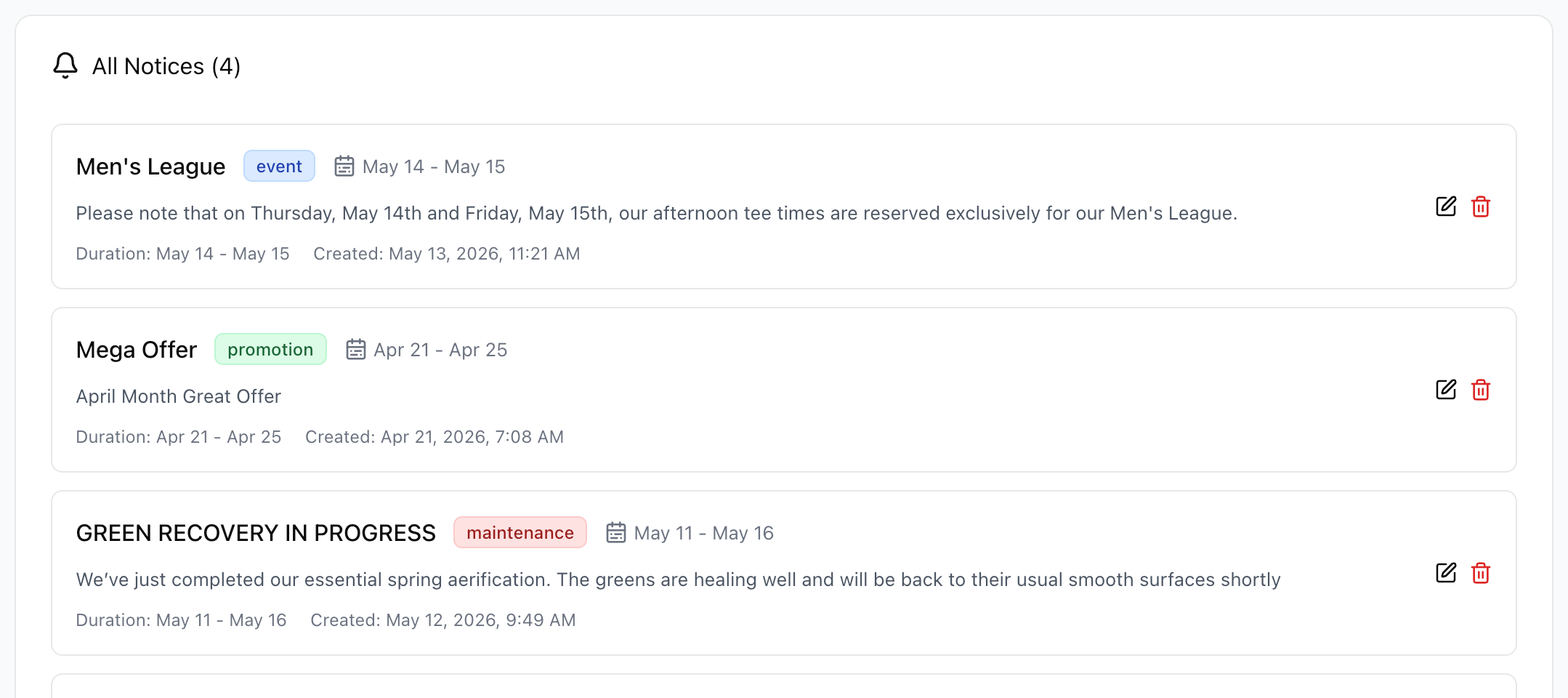
All Notices (Bottom): A comprehensive list of every notice ever created—including Past, Present, and Upcoming—for easy record-keeping.
How to Create a Notice
To post a new message, click the Add Notice button in the top right corner.

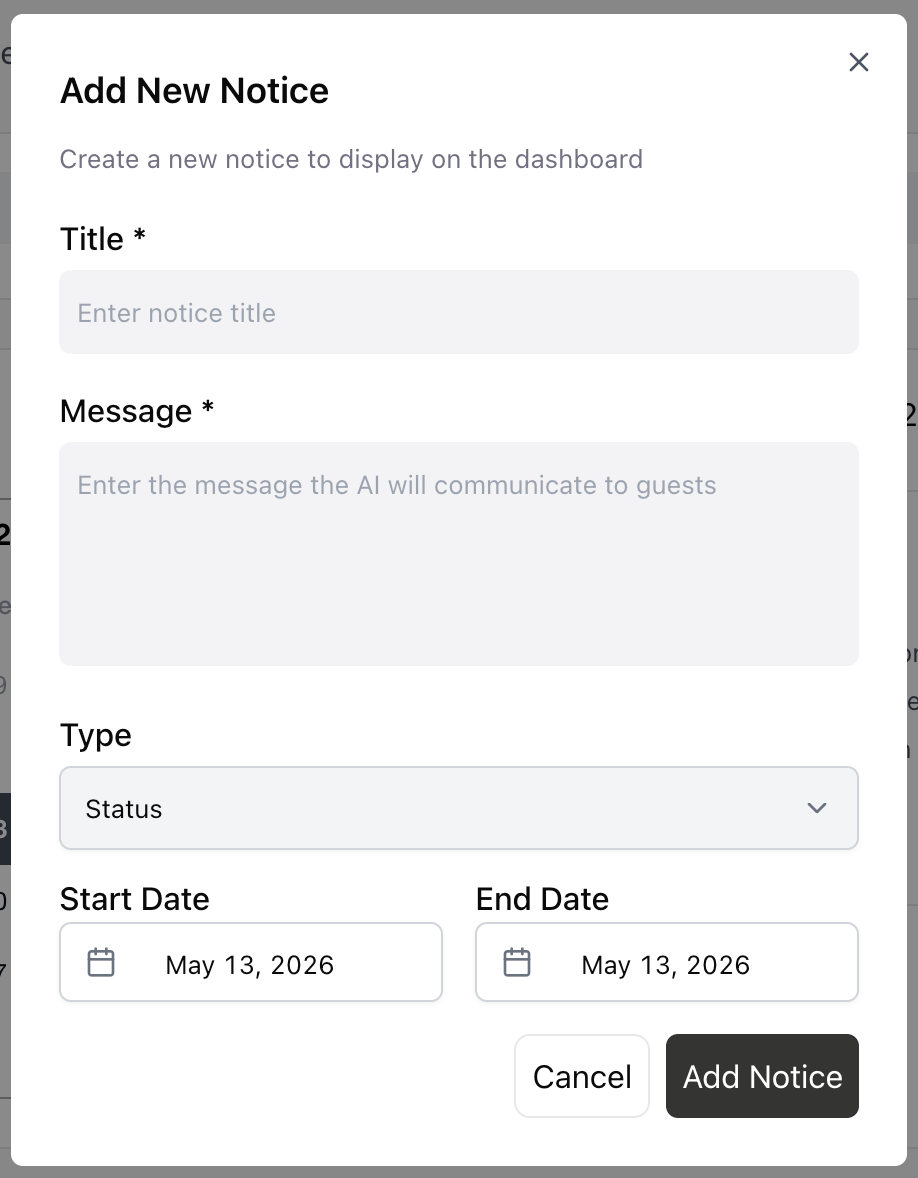
A pop-over will appear with the following fields:
Title: A short headline for the notice.
Message: The detailed information the AI will read to golfers or display on the web.
Type: Categorize your notice as an Event, Promotion, or Maintenance.
Start & End Date: Define the exact timeframe the notice should be active. Once the end date passes, the notice will automatically move to the "Past" list and stop being communicated to golfers.
Tip: You can Edit or Delete a notice at any time if your plans change or maintenance finishes earlier than expected.
Real-World Example: Grass Maintenance
If your course is undergoing maintenance that might affect play, simply add a notice with the "Maintenance" type and select the specific dates.
Result: When a golfer calls to book during those dates, the Voice Concierge will say: "Please be aware, we are currently performing maintenance on the grass, and playing conditions may be affected." The golfer can then decide to proceed or pick a different date, preventing any surprises when they arrive at the first tee.
Was this helpful?
Still need help? Share an idea