Missing Customer Data from Lightspeed (LS)
Written By Courserev Help
Last updated 6 months ago
When a booking is made through Lightspeed, you may occasionally find that the customer profile is not correctly attached to the booking within Courserev. This typically happens because of a specific permission setting within your Lightspeed dashboard.
The Problem
Courserev cannot identify the user or sync their profile details (such as name, email, or history) if the data-sharing permission is disabled. When this happens, bookings may appear as "Anonymous" or fail to link to existing customer records in your database.
The Solution: Enable Customer Data Sharing
To resolve this, you must grant Courserev permission to access customer data within your Lightspeed settings. Follow these steps:
Log in to your Lightspeed Dashboard.
Navigate to Settings in the main menu.
Select Integrators.
Locate CourseRev from your list of active integrators.
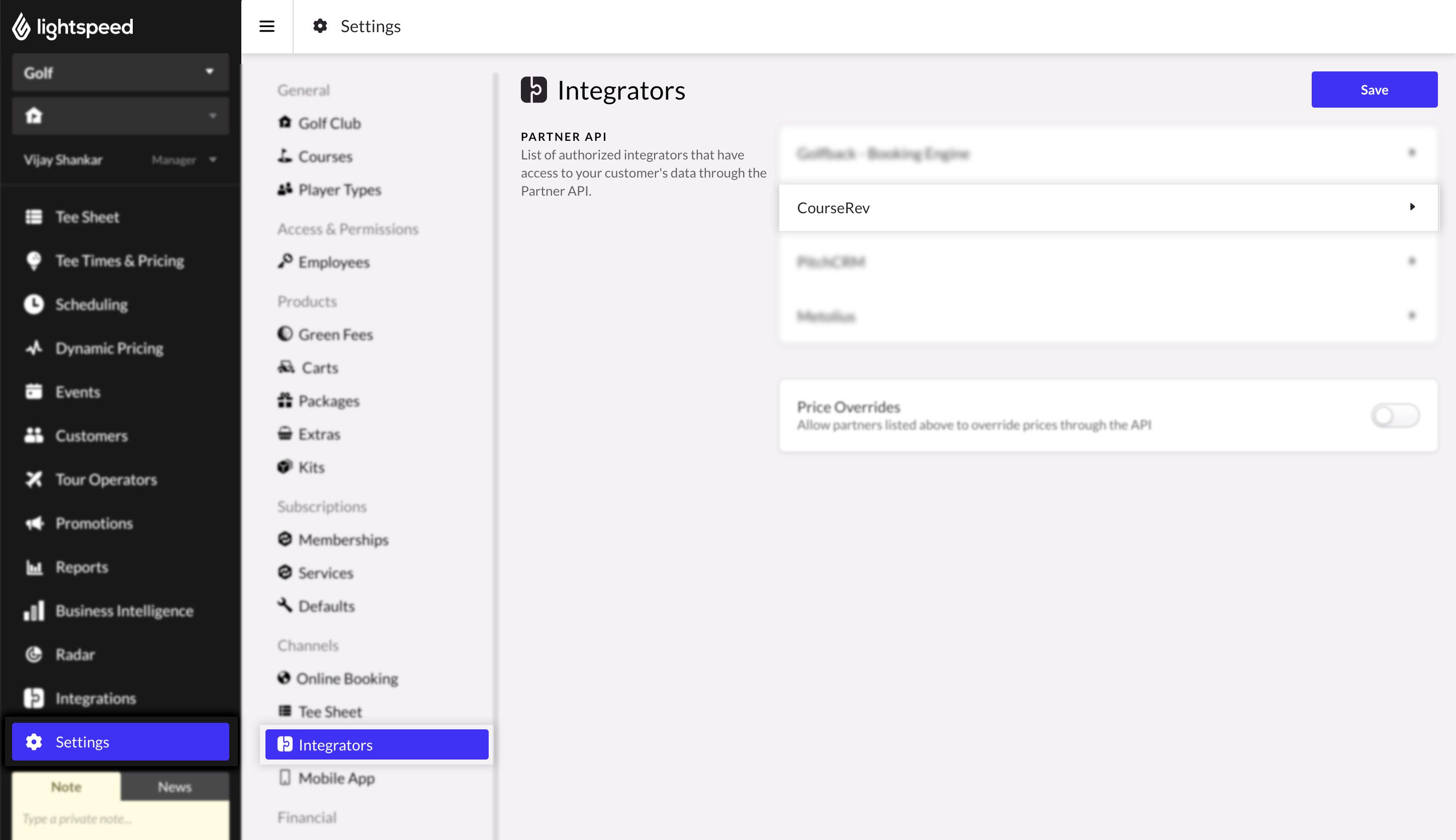
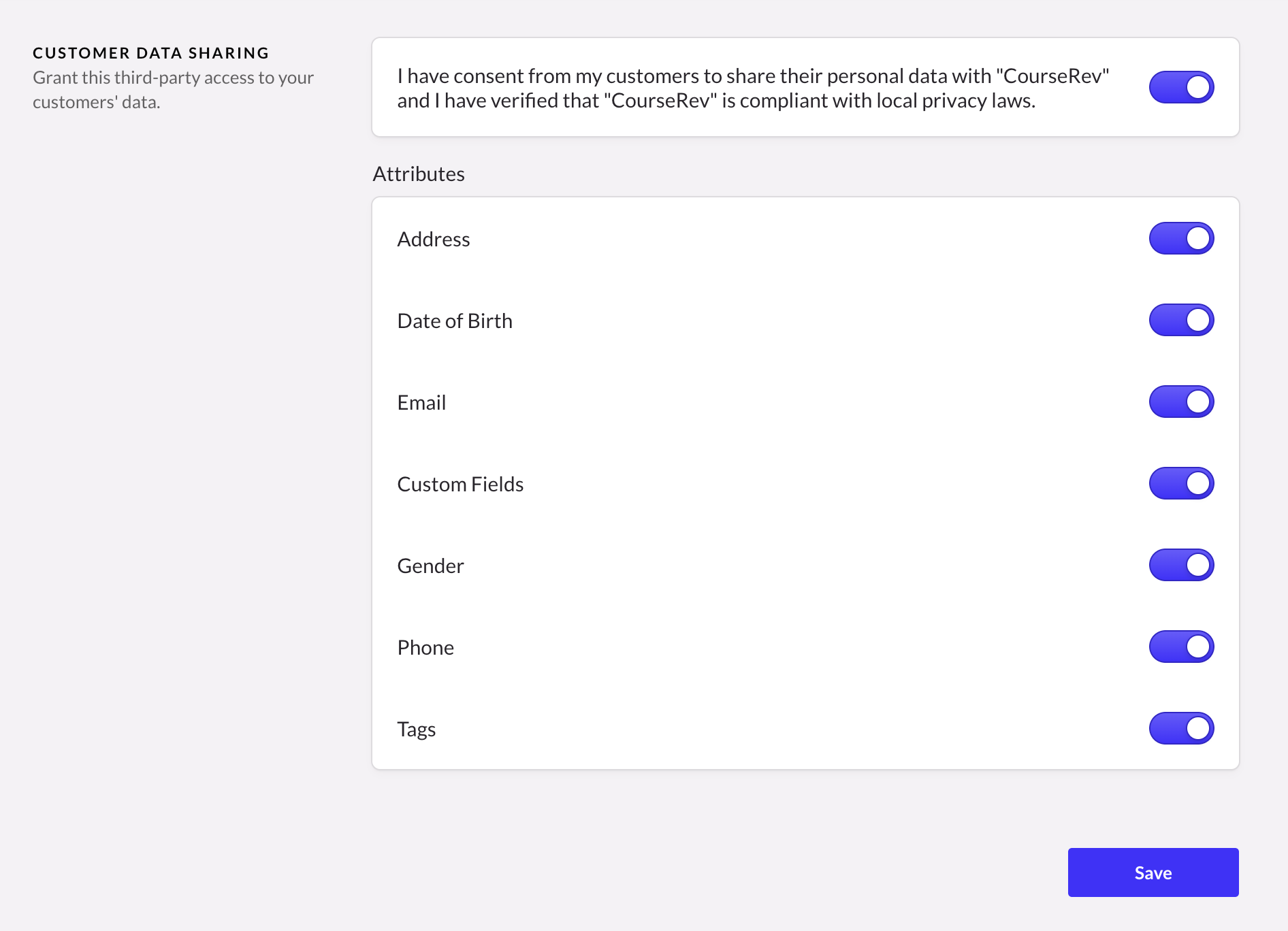
Find the Switch Button (Toggle) labeled for sharing customer data.
Ensure the switch is toggled to ON/Enabled.
Why is this necessary?
For Courserev to provide a seamless booking experience, it needs to "read" who is making the reservation. Enabling this switch allows our system to:
Identify returning customers automatically.
Attach the correct profile to the booking on your tee sheet.
Ensure accurate reporting and marketing data.
Still having trouble? If the switch is enabled and data is still not syncing, please contact our support team at support@courserev.ai.
Was this helpful?
Still need help? Share an idea