Settings
Written By Courserev Help
Last updated 5 months ago
The Settings section is the control center for your entire dashboard. It allows you to customize the booking experience, train your AI assistants, manage your brand, and control team access.
Note: The specific options visible to you will automatically adapt based on the CourseRev services your golf course has contracted.
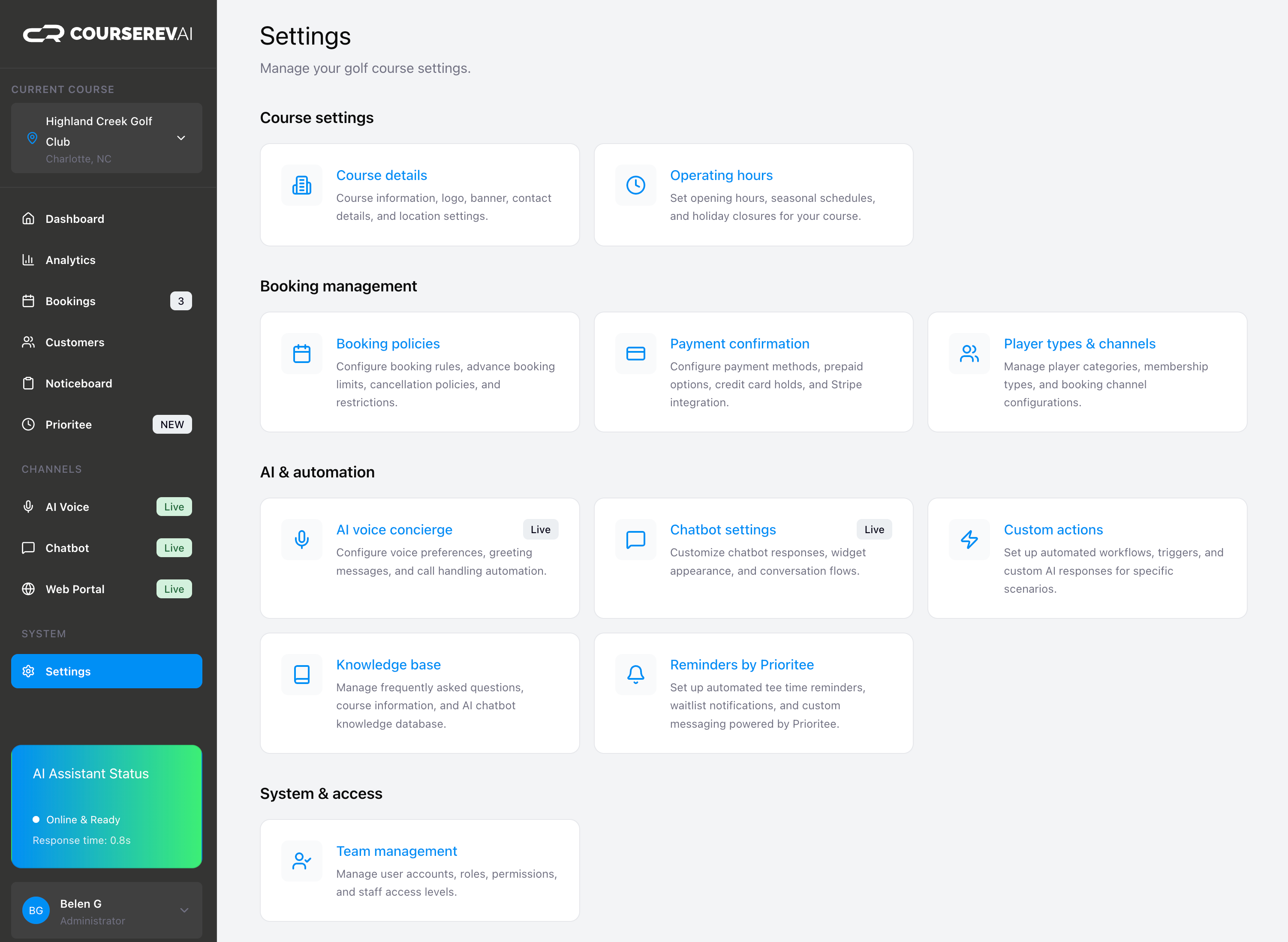
1. Course Settings
Manage your course's public profile, branding, and seasonal availability.
Course Details: View your official course information and upload your Profile Picture and Banner Image. These visuals are automatically applied to your web booking portal and all transactional customer emails.
Operating Hours: Set your standard weekly opening and closing hours. You can also block out specific Closed Days or Maintenance Dates (like aeration weeks) to prevent accidental bookings.
2. Booking Management
Fine-tune your reservation rules and golfer classifications.
Booking Policies: Configure your course’s cancellation windows, cancellation policy, bookings policy…
Payment Confirmation: View and verify the payment collection methods currently enabled for your course. This determines how golfers must secure their tee times across your digital channels:
Pay at Counter: Golfers secure their slot online or via the AI but pay directly at the pro shop when they arrive.
Prepaid: The full amount of the tee time must be paid online/via AI at the time of booking.
Booking Fee Prepaid: Golfers pay a small, non-refundable deposit online to lock in the tee time, and pay the remaining balance at the course.
Credit Card Hold: A credit card is required to secure the slot, but no immediate charge is processed. The card is held securely in case of a late cancellation or no-show.
Player Types & Channels: Review the assigned player types (e.g., Member, Guest, Senior, Junior) to each of the active CourseRev channels (Voice, Chat, Web) to ensure accurate pricing.
3. AI & Automation
Train and customize your automated AI staff to fit your exact business needs.
AI Voice Concierge: Adjust settings for your phone line.
Chatbot Settings: Customize the look and feel of your chatbot widget. Adjust colors, fonts, and styling to seamlessly match your golf course's website branding.
Custom Actions: Create custom "if/then" rules for the AI.
Example: Set a rule stating that if a caller asks about restaurant reservations, the AI should automatically forward the call directly to the restaurant's phone number.
Knowledge Base (KB): Instantly update the facts your AI knows. If your dress code changes, your pro shop rates shift, or you add new amenities, update the information here so the AI immediately starts sharing the correct details.
Reminders (by Prioritee): Configure automated booking reminders. Choose which channels (SMS or Email) to use and when they should be sent to reduce no-shows.
4. System & Access
Control who has permission to view and modify your dashboard.
Team Management: Invite your pro shop staff, managers, or stakeholders to the dashboard. You can add new users and manage their individual access levels to keep your data secure.
Was this helpful?
Still need help? Share an idea