How to Charge No-Show Fees
Written By Courserev Help
Last updated 3 months ago
Charging for no-shows ensures your course protects its revenue from empty tee times. Our system allows you to easily process these fees directly from your past booking records, provided you have a payment method securely stored on file.
Step 1: Verify Your Payment Confirmation Settings
Before you can penalize a no-show, your dashboard must be configured to capture and store customer payment details during the initial booking process.
Navigate to Settings > Payment Confirmation.
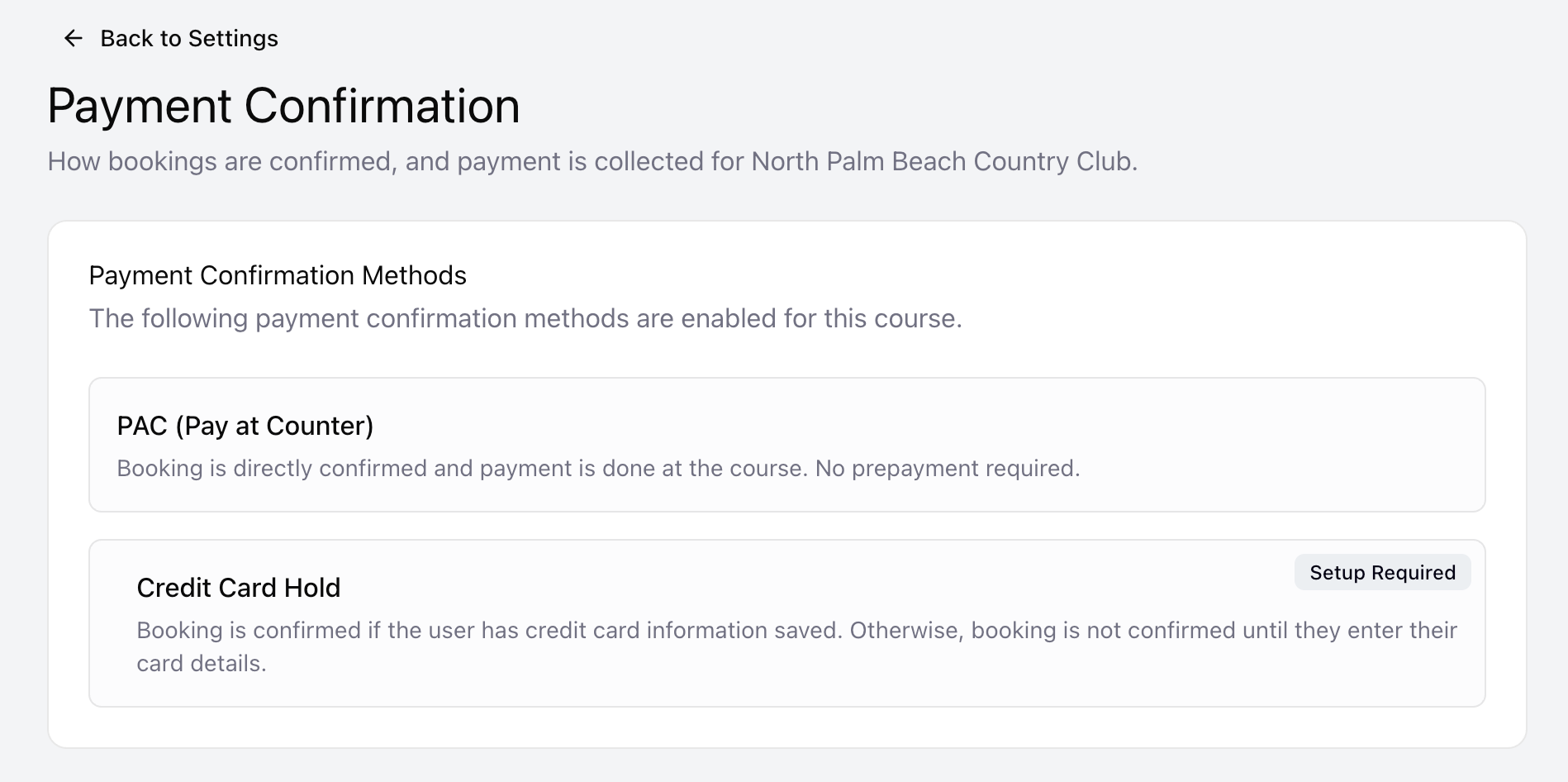
Verify that at least one of the following methods is currently enabled for your course:
Booking Fee Prepaid (Deposit paid upfront)
Credit Card Hold (Card saved to secure the slot without an immediate charge)
🔒 Why is this required? To process a no-show charge, the system requires a tokenized credit card or existing transaction profile attached to the golfer's reservation.
Step 2: Configure Your No-Show Fee Policy
Next, you must define exactly how much a golfer will be penalized for missing their tee time.
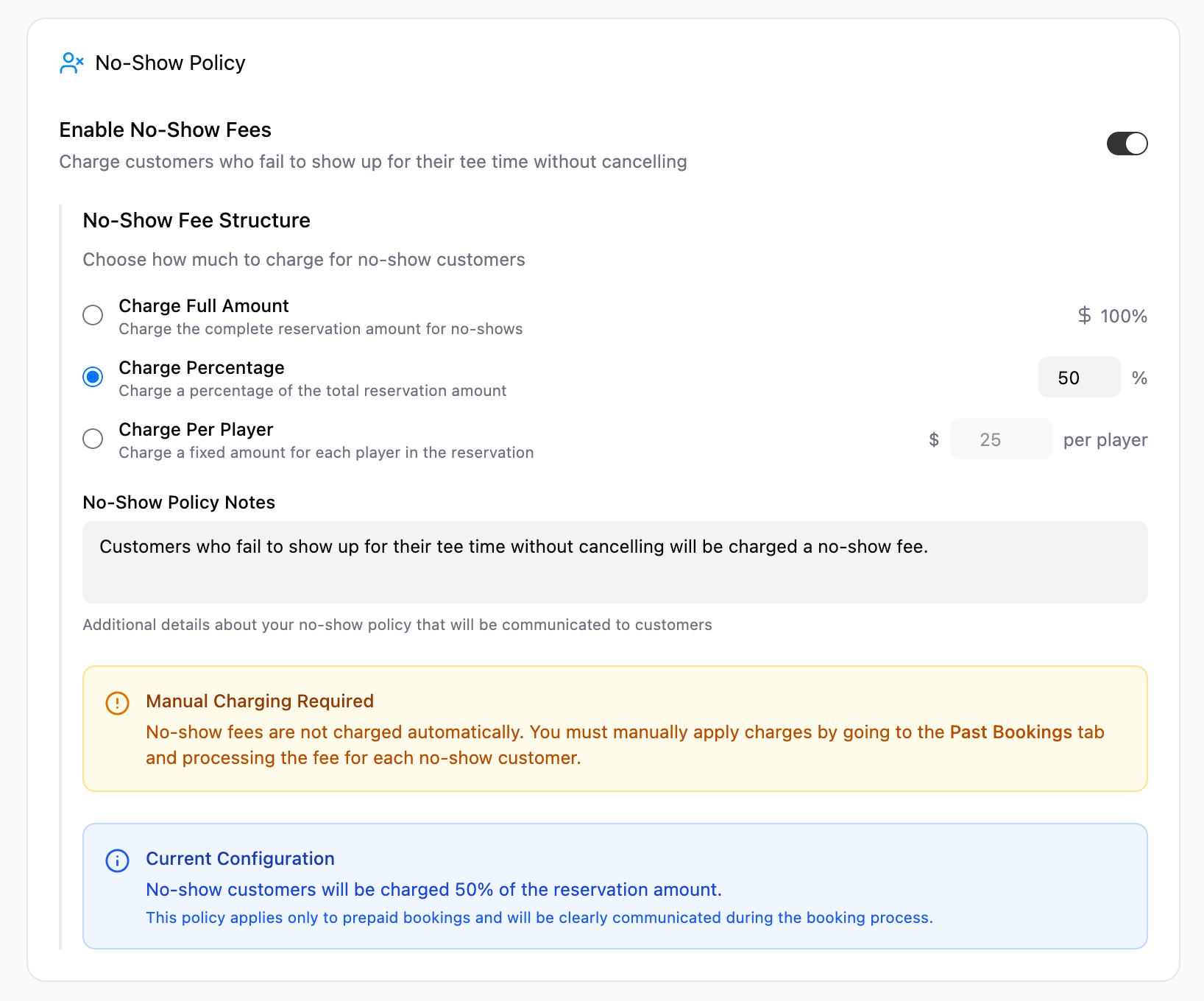
Navigate to Settings > Booking Policies.
Scroll to the No-Show Policy section to set up your rules. You can choose from three fee structures:
Full Amount: Charges $100\%$ of the reservation total.
Percentage: Charges a specific defined percentage of the total booking cost.
Fixed Amount: Charges a flat fee multiplied by the number of players ($n$) who failed to show up.
Step 3: Processing the No-Show Charge
Once you have verified your settings, you can process fees for golfers who missed their tee times by following these steps:
Navigate to the Bookings page and select the Past bookings tab.
Look for reservations flagged with the following statuses:
🛑 No-Show: The entire group missed their scheduled tee time.
⚠️ Partially Completed: Only a portion of the players showed up for the round (e.g., 2 players arrived out of a booked foursome).
Click the Charge button located in the actions column next to the eligible booking.

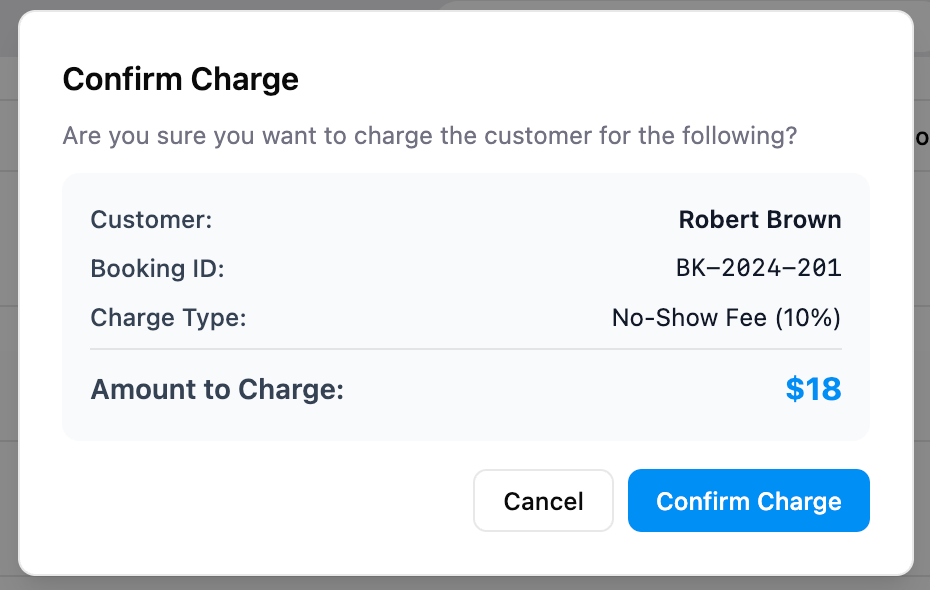
A confirmation alert pop-up will appear outlining the penalty details. Review the information and click Confirm.
What happens next?
Payment Processing: The system automatically calculates the penalty using your configured formula and charges the customer's card on file.
Automated Notification: The golfer instantly receives an automated email notification and text message notification detailing the cancellation penalty and providing a receipt for the transaction.
Still need help? Share an idea