How to Schedule When Your AI Voice Answers Calls
Written By Courserev Help
Last updated About 2 hours ago
The Voice Channel Scheduler lets you choose when your AI Voice answers calls. You can leave it on around the clock, or set your own hours for each day of the week. AI Voice then switches itself on and off at those times. The scheduler is available for courses on CourseRev V2.
How the Voice Channel Scheduler Works
There are two modes in Settings > AI Voice Settings:
Always On (24/7): This is the default. AI Voice answers calls at all hours.
Custom Hours: This opens a Monday to Sunday schedule builder. You turn each day on or off and set its From and To times. Overnight windows are supported, for example 6:00 PM to 6:00 AM.
Once your schedule is saved:
Automatic Switching: AI Voice turns on and off by itself at your set times, using your course's local time zone. You don't need to refresh the page.
Clear Status: Outside your hours, a "paused due to schedule" badge shows on your Dashboard and a status banner shows on the AI Voice Channel page.
Calls Still Reach Your Team: While AI Voice is paused, calls go straight to your pro shop.
Step-by-Step: Setting Up Your AI Voice Schedule
You can set your schedule directly from your v2 Dashboard:
Navigate to AI Voice Settings: Open your Course Dashboard and go to Settings > AI Voice Settings.
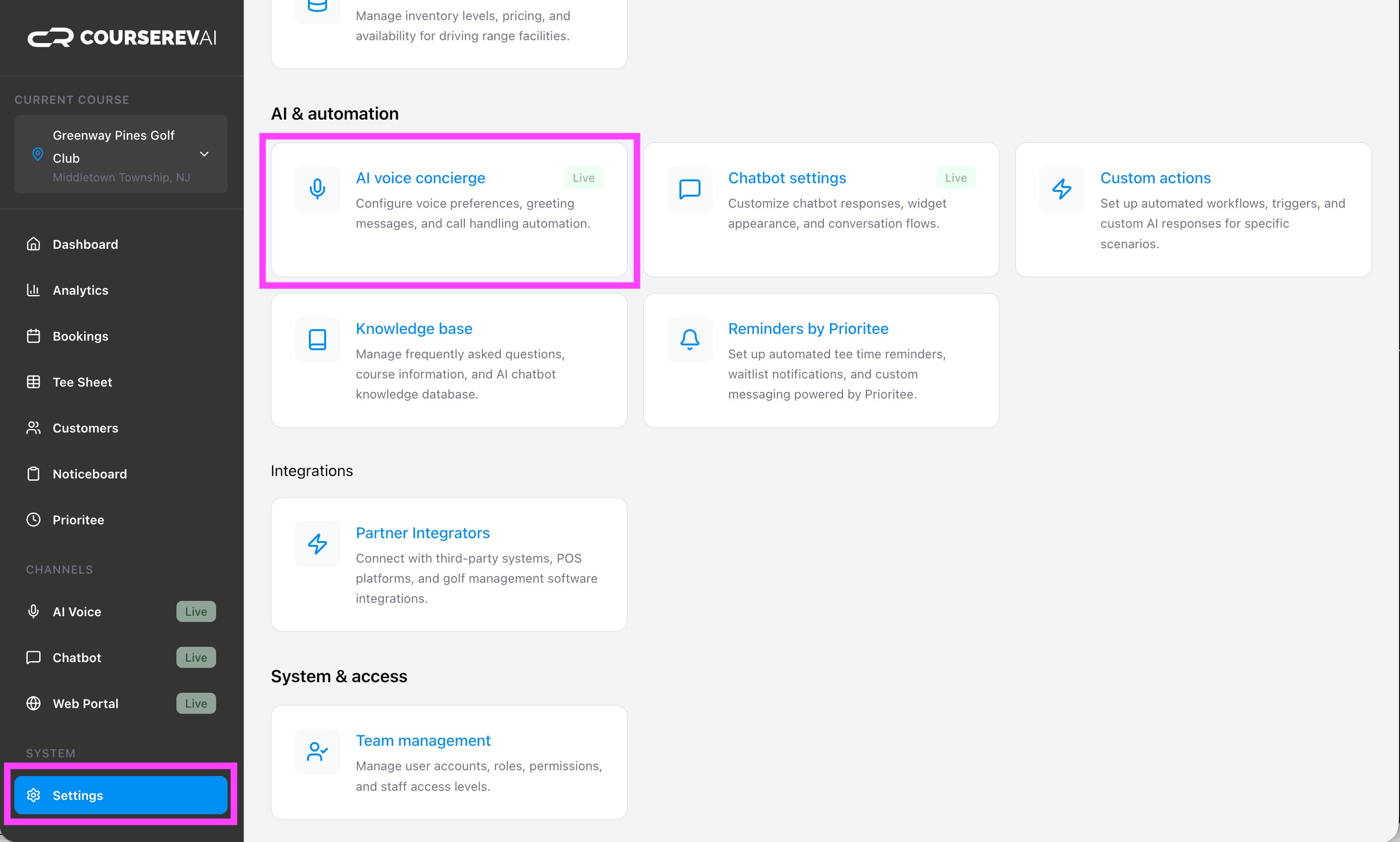
Choose Your Mode: Keep Always On (24/7), or select Custom Hours.
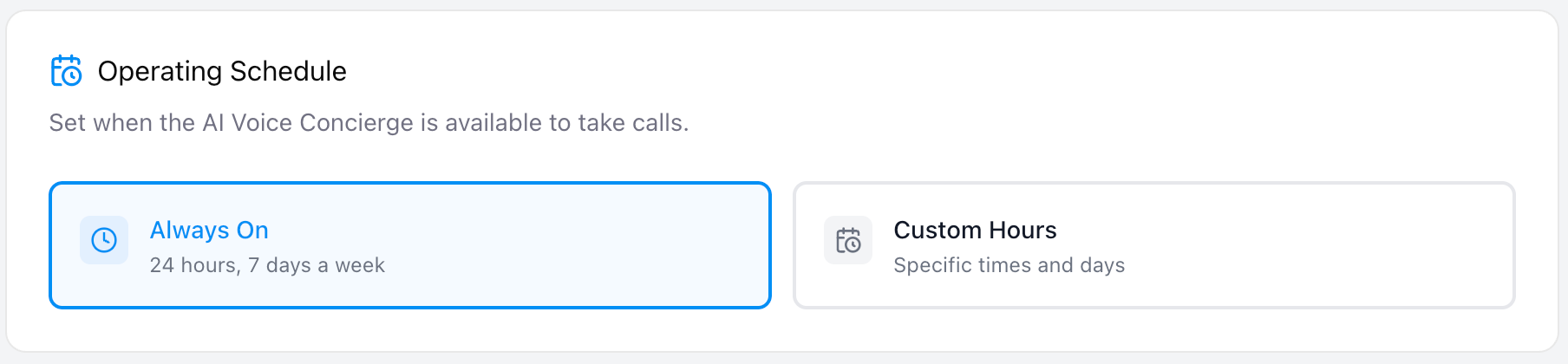
Set Your Hours: In the schedule builder, turn on the days you want, set the From and To times for each, and click Save.
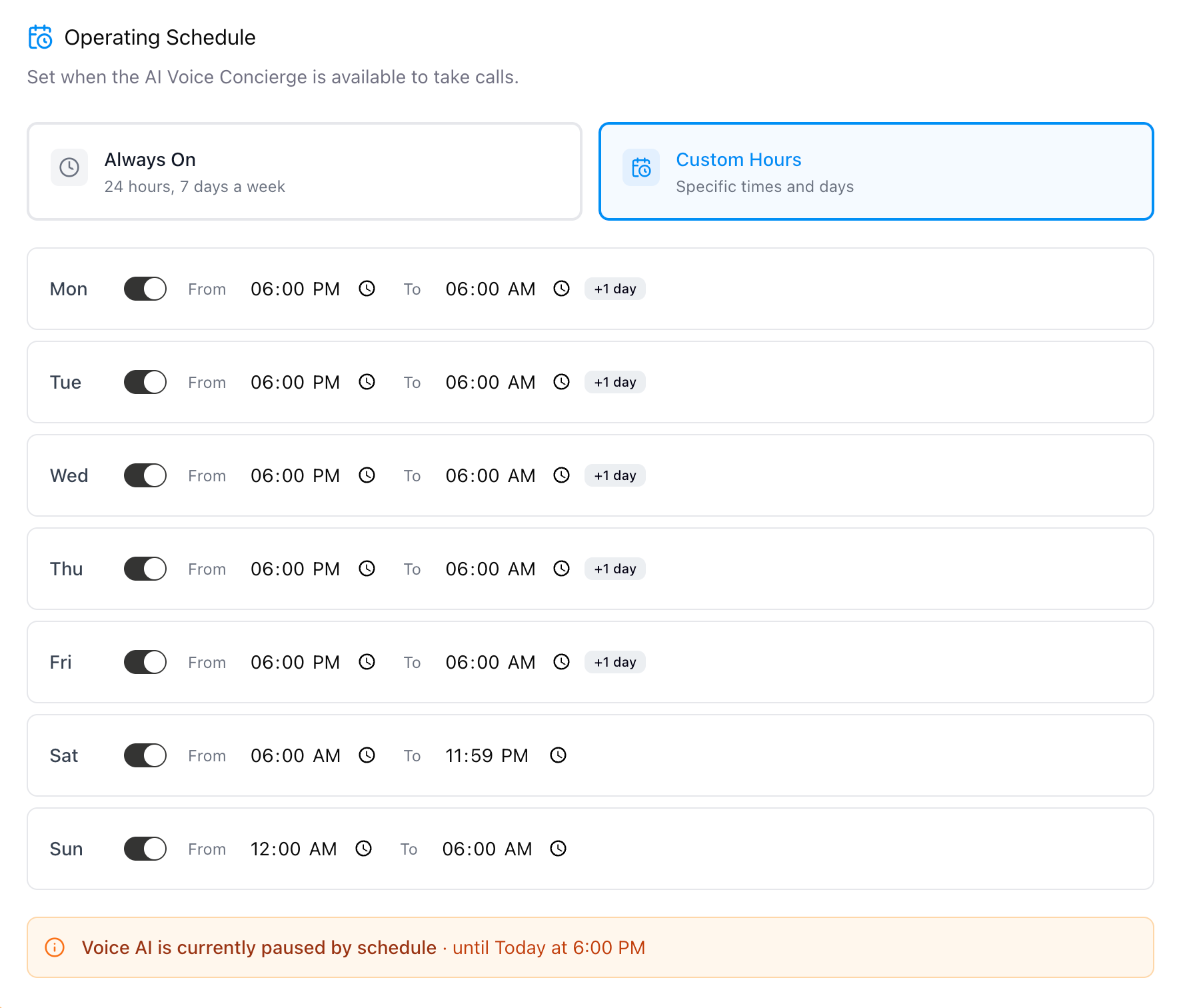
Confirm It's Running: Check the status indicator on your Dashboard to confirm your schedule is active.
⚠️ Important Reminder: Saved changes can take up to 2 minutes to apply. If the status hasn't updated right away, wait a moment before checking again.
Frequently Asked Questions
What happens to calls while AI Voice is paused?
They go straight to your pro shop.
Can I set hours that run past midnight?
Yes. Overnight windows are supported, for example 6:00 PM to 6:00 AM.
How long do schedule changes take to apply?
Up to 2 minutes after you save.
How do I switch back to 24/7?
Go to Settings > AI Voice Settings, select Always On (24/7), and save.
Was this helpful?
Still need help? Share an idea